
Stamp cards in Apple Wallet and Google Wallet: how they work for businesses
A stamp card in Apple Wallet or Google Wallet needs no app. Here is the whole journey: how customers save the card, what happens on the lock screen, what you decide, what it costs and what does not work.
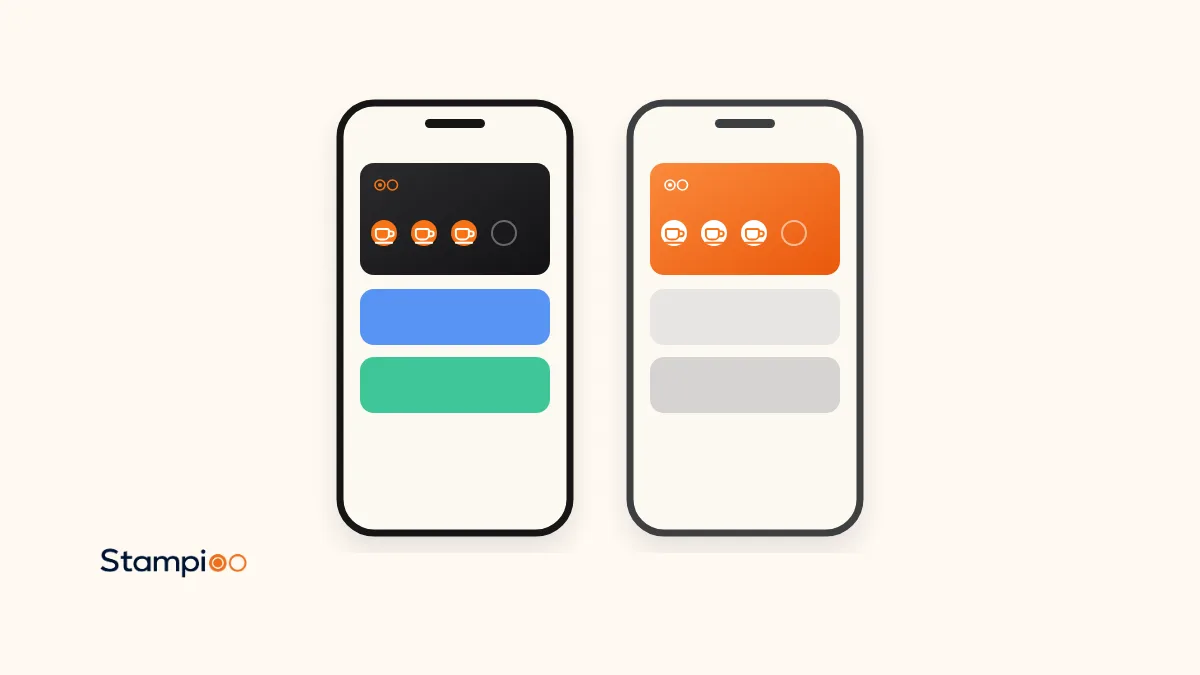
A stamp card in Apple Wallet or Google Wallet is a digital card saved in the wallet app on the customer's phone. The customer scans a QR code, fills in a short form and taps Add. From then on, the stamps update automatically every time your staff scan the card, and the customer never has to download an app.
What many people call an Apple Wallet stamp card, we at Stampioo call a Wallet loyalty card. In this guide we go through the whole journey: what a Wallet card is, how customers add it on iPhone and Android, what happens on the lock screen, what you decide, what it costs and what does not work.
In short
- A Wallet card is a pass in Apple Wallet or Google Wallet, not an app of its own. Customers do not download anything from your business.
- Customers join by scanning a QR code, filling in a short form and saving the card to their wallet.
- Stamps and rewards update on the card instantly, and the customer gets a notification when something happens.
- You choose the name, reward, number of stamps (2–20), colours, stamp icon, logo and terms.
- With Stampioo it costs from €29 a month excl. VAT, and you can try it free for 30 days.
A Wallet card is a pass, not an app
Apple Wallet is the wallet app built into the iPhone, and Google Wallet is Google's equivalent for Android. That is where customers keep payment cards, tickets and boarding passes, and loyalty cards too. A card in the wallet is called a pass: a small digital file with your logo, your colours, a QR code and a few text fields, which Apple or Google displays in its own wallet.
For customers, the difference from an app is big. There is nothing to download from the App Store, no account to create and no password to remember. The card sits next to their payment cards, where they look anyway when it is time to pay.
For you, it means the card can be updated remotely. Both Apple and Google let whoever issues the pass send updates to it, such as a new stamp or new reward text. So customers never have to add the card again when something changes.
How customers add the card
Customers start the same way whatever phone they have: by scanning your QR code with the phone camera. The code can be on a poster by the till, on the table, in the window or on the menu. The camera recognises the code and shows a link for the customer to tap.
On iPhone
Scan the QR code
Open the camera, point it at the code and tap the link that appears.
Fill in the form
The customer fills in the details you have chosen to ask for and accepts the terms.
Tap Add to Apple Wallet
The card opens in Apple Wallet with a preview.
Tap Add
Only now is the card saved. This step is easy to miss, so mention it at the till.
On Android
Scan the QR code
The camera or the phone's QR reader opens the link.
Fill in the form
The same short form as on iPhone.
Tap Add to Google Wallet
The card opens in Google Wallet.
Tap Save
The card is saved in Google Wallet and linked to the customer's Google account.
It helps to show customers the steps yourself for the first few days. A sign saying “Scan and save your loyalty card” helps too, and you will find ready-made signs among our counter posters.
What happens on the lock screen
Once the card is in the wallet, it starts working for you. Three things can appear on the customer's lock screen.
Stamps and rewards
When your staff scan the card, the stamps update instantly and the customer gets an automatic notification. When the card is full, the reward shows. After it is redeemed, a new card starts automatically, so the customer can start collecting again on their very next visit.
Reminders nearby
You add your business address, and when a customer who has the card is nearby, the card can appear on their lock screen. Location reminders are included in every Stampioo plan. Apple Wallet and Google Wallet monitor at most 10 locations per card, so if you have more addresses, you choose which ones send reminders.
The reminder looks a little different on each platform. On iPhone, each location can have its own text explaining why the card is showing. On Android, Google decides the text, how close the customer needs to be and how long they need to stay, and the customer must have turned on notifications and given Google Wallet access to their precise location all the time.
Campaigns
With campaigns you send offers and news straight to cardholders' lock screens, with no cost per text message. Pro includes 10 campaigns a month and Enterprise unlimited, while Starter has no campaigns. A campaign reaches the customers who have saved the card and allowed notifications from Wallet.
Google sets a limit: according to Google's documentation, a card can receive at most three messages with a notification per 24 hours. So send one well-planned campaign rather than several small ones on the same day.
What you control
You set up the loyalty programme in the Stampioo dashboard, and that decides how the card looks in the customer's wallet. There is more about the look on the card design page.
- The programme name and the card's language.
- The number of stamps, from 2 to 20, and the reward text.
- The stamp icon, card colour, light or dark text and the background colour of the stamps.
- The logo, which Wallet cards require: at least 200 × 200 pixels and no more than 2 MB. A square logo looks best.
- Terms and rules, shown on the back of the card.
- Which details customers give you. Email, phone number and birthday are all optional.
Not sure how many stamps are right? Work it out with our reward calculator.
How much does a Wallet stamp card cost?
For customers, the card is free. It costs nothing to save and nothing to use.
For you, Stampioo costs from €29 a month excl. VAT, or €23 a month if you pay annually. Every plan includes Wallet cards for Apple and Google, unlimited customers and scans, and location reminders. You can try it free for 30 days with no card details and no commitment. See all the details on the pricing page.
| Plan | Per month | Programmes and locations | Campaigns |
|---|---|---|---|
| Starter | €29 | 1 programme, 1 location | None |
| Pro | €49 | 5 programmes, 5 locations | 10 a month |
| Enterprise | €99 | Unlimited | Unlimited |
Your staff add stamps with the scanner in the browser on an ordinary phone or tablet. So you need no extra equipment and no connection to your till system.
What does not work, and what to do about it
Phones without Google Wallet
According to Google's help pages, Google Wallet needs Android 9 or later. An older Android phone, or a phone where Google Wallet cannot be installed, therefore cannot save the card. If you meet a customer like that, a paper card from our printable loyalty card maker makes an easy fallback.
The customer deletes the card
If the customer removes the card, it disappears from their wallet. Apple says a deleted pass is removed from all of the customer's devices, and Google says the same about passes linked to the Google account. The customer can scan your QR code again and get a new card, but the new card starts at zero stamps. You or your staff can then add the stamps back by hand in the dashboard.
The customer changes phone
If the customer changes phone, they scan your QR code again and get a new loyalty card. You or your staff can then add the stamps back by hand in the dashboard.
The customer has turned off notifications
The card works as usual at the till, but campaigns and reminders do not arrive as notifications. Instead, the customer sees the message when they open the card.
Differences between Apple Wallet and Google Wallet
For the most part, the cards work the same way. These are the differences Apple and Google themselves describe in their documentation.
| Feature | Apple Wallet (iPhone) | Google Wallet (Android) |
|---|---|---|
| Phone requirements | Wallet is built into the iPhone | Android 9 or later |
| Reminder nearby | The card can show on the lock screen near a location, with text you choose for each location | Google decides the distance, timing and text. The customer must allow precise location all the time, and notifications |
| Locations per card | At most 10 | At most 10 |
| Notifications | Can show when a field on the card changes, such as the number of stamps | At most 3 messages with a notification per card per 24 hours |
| New phone | The customer scans the QR code again | The customer scans the QR code again |
| Deleted card | Removed from all of the customer's devices | Removed from all devices linked to the account |
See your own loyalty card in Wallet
Create a loyalty programme, print the QR code and let your first customers save the card. No card details needed.
Try free for 30 daysFrequently asked questions
Do customers need an app?
No. The card is saved in Apple Wallet on an iPhone or in Google Wallet on Android. The customer scans a QR code, fills in a short form and taps Add or Save.
Does it cost the customer anything?
No. The card is free for customers to save and use. You, the business owner, pay for the loyalty programme.
Does the card update automatically?
Yes. Stamps and rewards update instantly when your staff scan the card. If you change the reward, terms or design, the change reaches every customer's card, without them having to add the card again.
What happens if a customer changes phone?
If the customer changes phone, they scan your QR code again and get a new loyalty card. You or your staff can then add the stamps back by hand in the dashboard.
Does it work on Android?
Yes, through Google Wallet. According to Google, Google Wallet needs Android 9 or later, so an older phone or a phone without Google Wallet cannot save the card.
A stamp card in Apple Wallet and Google Wallet gives customers a card they cannot leave at home, and gives you a way to reach your regulars again. If digital stamp cards are new to you, start by reading what a digital stamp card is. When you are ready to get going, our guide to creating a digital loyalty programme takes you through every step.
The information about Apple Wallet and Google Wallet comes from Apple's and Google's own documentation, checked 2 November 2026.
- Apple: Set up cards and passes in Wallet on iPhone
- Apple: Use passes, cards, and keys in Wallet on iPhone
- Apple: Manage passes, cards, and keys in Wallet on iPhone
- Apple Developer: Showing a pass on the lock screen
- Apple Developer: Adding a web service to update passes
- Apple Developer: PassFieldContent (changeMessage)
- Google: Your version of Android doesn't support Google Wallet
- Google: Manage items in Google Wallet
- Google: Transfer a pass or card on Google Wallet
- Google for Developers: Trigger push notifications, loyalty cards
Keep reading
Launch your loyalty programme this week.
Start with a 30-day free trial.
Create my card for freeSet up in minutes · Cancel anytime